

Quick answer: If your eSIM is installed but has no internet, do not delete it. Confirm that you are in a covered destination, the plan is active and has remaining data, the travel eSIM is turned on and selected for mobile data, data roaming is enabled when required, and the APN and supported network are correct. Then toggle Airplane Mode and restart your phone. Reset mobile network settings or contact support only after completing the earlier checks.
A travel eSIM can appear in your phone’s settings and still fail to load websites. This is one of the most common travel eSIM support issues.
It does not necessarily mean that the eSIM is damaged or that you need to reinstall it. Common causes include:
- You have not reached a covered destination.
- The plan has not activated yet.
- Your primary SIM is still selected for mobile data.
- Data roaming is disabled on the travel eSIM.
- The APN is missing or incorrect.
- Your phone has not registered on a supported local carrier.
- The plan is expired, depleted, suspended, or cancelled.
- Local coverage is weak or the network is temporarily congested.
The most important rule is:
Identify which layer is failing before changing or deleting the eSIM.
Many travel eSIM QR codes can be installed only once. If you erase the eSIM profile, the original QR code may no longer work.
First identify the type of problem
The eSIM does not appear in your phone
If the travel eSIM is completely missing from your SIM or cellular settings, this is an installation problem rather than a mobile data configuration problem.
Check whether:
- The QR code was scanned successfully.
- Your phone supports eSIM.
- Your phone is carrier-unlocked.
- The eSIM was installed on another device.
- The QR code has already been used or has expired.
The eSIM appears but shows no service
You might see:
No Service
SOS
Emergency calls only
Not registered on network
Searching
Possible causes include:
- You have not reached a covered destination.
- There is no supported carrier signal at your location.
- Your phone did not automatically select a compatible network.
- The plan is not active.
- Your phone’s regional model or supported bands are incompatible.
- A local carrier is experiencing an outage.
The phone shows signal, 4G, LTE, or 5G but has no internet
This usually points to a data configuration or plan issue, such as:
- The travel eSIM is not selected for mobile data.
- Data roaming is off.
- The APN is incorrect.
- The plan has no remaining data.
- The phone is connected to Wi-Fi without internet access.
- A VPN, proxy, private DNS, or firewall is interfering.
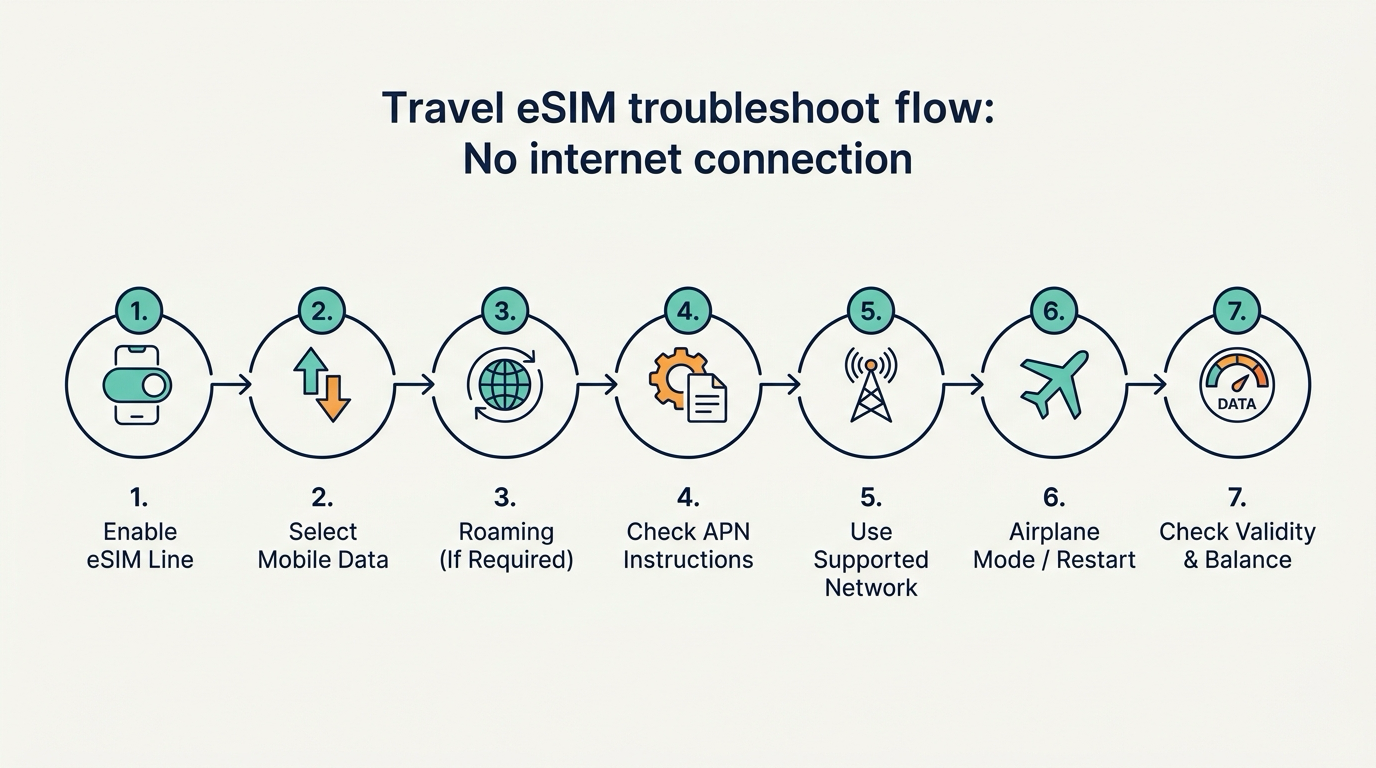
Step 1: Confirm that you are in a covered destination
Many travel eSIMs can register only after you enter a country or region included in the plan.
Before arrival, the eSIM may show:
Activating
No Service
Searching
That does not necessarily mean installation failed.
For regional and global eSIMs, check whether a transit country is included. Confirm:
- Whether your current country is covered.
- Whether the plan covers only selected destinations.
- Which local carriers are supported.
- Whether activation begins with the first connection to a supported network.
👉 Related Reading: Local vs Regional vs Global eSIM: Which One Should You Choose?
Check Caylet eSIM Coverage and Plans
Step 2: Confirm that the plan is active and usable
An eSIM line being turned on in your phone does not prove that the provider-side plan is active.
Check your order page or support information to confirm:
- The plan is activated.
- The validity period has not ended.
- Data remains available.
- You have not reached a daily high-speed allowance.
- Manual activation is not still required.
- Any required identity registration is complete.
- The order has not been cancelled, refunded, or suspended.
- The activation deadline has not passed.
If the order status shows Expired, Depleted, Suspended, Cancelled, or Activation failed, changing phone settings alone is unlikely to solve the issue. Contact support.
Step 3: Temporarily disable Wi-Fi, VPNs, and proxies
Your phone may be connected to airport Wi-Fi without internet access or hotel Wi-Fi that still requires a sign-in page.
Turn off Wi-Fi and load a normal webpage.
Also consider temporarily disabling:
- A VPN.
- A proxy.
- Private DNS.
- iCloud Private Relay.
- Ad-blocking or firewall apps.
If mobile data works after disabling one of these services, the eSIM may not be the source of the problem.
Step 4: Make sure the travel eSIM is turned on
iPhone
Settings → Cellular → Select the travel eSIM
Make sure Turn On This Line is enabled.
Apple may label the section Mobile Data instead of Cellular, depending on the device region and language.
Samsung Galaxy
Settings → Connections → SIM manager
Make sure the travel eSIM switch is on.
Google Pixel
Settings → Network & internet → SIMs
Select the travel eSIM and make sure Use SIM is on.
Step 5: Select the travel eSIM for mobile data
Installing and turning on an eSIM does not always make it the active data SIM.
iPhone
Settings → Cellular → Cellular Data
Select the travel eSIM. To reduce the chance of switching back to your primary SIM, turn off Allow Cellular Data Switching.
Samsung Galaxy
Settings → Connections → SIM manager
Under Preferred SIMs, Primary SIM, or Mobile data, select the travel eSIM.
Google Pixel
Settings → Network & internet → SIMs
Select the travel eSIM for mobile data. Turn off Automatic data switching when you want to avoid falling back to the primary SIM.
Step 6: Enable data roaming on the travel eSIM
Most travel eSIMs use roaming agreements with local partner carriers, so data roaming usually needs to be enabled.
iPhone
Settings → Cellular → Travel eSIM → Cellular Data Options → Data Roaming
Samsung Galaxy
Settings → Connections → Mobile networks → Data roaming
Google Pixel
Settings → Network & internet → SIMs → Travel eSIM → Roaming
Enable roaming on the travel eSIM, not on the primary SIM by mistake.
| Setting | Primary SIM | Travel eSIM |
|---|---|---|
| Mobile data | Not selected | Selected |
| Data roaming | Usually off | On when required |
| Automatic data switching | Avoid falling back to this SIM | Usually off |
| Calls and SMS | Keep if needed | Often unavailable on data-only plans |
Step 7: Toggle Airplane Mode and restart
Turn on Airplane Mode for 15 to 30 seconds, turn it off, and wait for the phone to re-register.
If the connection still fails, restart the phone. After restarting, verify that:
- The travel eSIM is still on.
- It is still selected for mobile data.
- Data roaming remains enabled.
- The correct APN remains selected.
Step 8: Check the APN
An Access Point Name, or APN, tells the phone how to establish a mobile data session.
Some travel eSIMs configure the APN automatically. Others require a manual value. Change it only when the product page, order instructions, or support team provides one.
iPhone
Settings → Cellular → Travel eSIM → Cellular Data Network
Samsung Galaxy
Settings → Connections → Mobile networks → Access Point Names
Google Pixel
Settings → Network & internet → SIMs → Travel eSIM → Access Point Names
Check that:
- The APN spelling is exact.
- There are no extra spaces.
- A newly created APN is selected.
- You did not edit the primary SIM’s APN.
- Username and password are blank unless explicitly provided.
Do not guess generic values such as internet, data, or web unless the product instructions require them.
Step 9: Manually select a supported network
Phones normally select a partner carrier automatically, but registration can fail.
First confirm which local carriers the product supports.
iPhone
Settings → Cellular → Travel eSIM → Network Selection
Samsung Galaxy
Settings → Connections → Mobile networks → Network operators
Google Pixel
Settings → Network & internet → SIMs → Travel eSIM → Automatically select network
Turn off automatic selection, then:
- Choose only carriers listed for the product.
- Wait one or two minutes after each selection.
- Test another listed partner if the first one fails.
- Re-enable automatic selection after testing when appropriate.
Step 10: Test 4G or LTE
5G coverage may be inconsistent in some locations. Temporarily test 4G or LTE to confirm basic connectivity.
If 4G works while 5G does not, the plan itself is not necessarily faulty.
Step 11: Set date and time automatically
Incorrect date, time, or time zone settings can interfere with network registration and security certificates.
iPhone
Settings → General → Date & Time → Set Automatically
Android
Settings → System or General management → Date and time
Enable automatic date, time, and time zone.
Step 12: Check data balance, throttling, and expiration
If the eSIM worked earlier and then stopped, check:
- Total data remaining.
- Daily high-speed data allowance.
- Plan expiration.
- Whether a top-up is required.
- Fair use policy status.
- Whether the provider still shows the plan as active.
A throttled plan may technically remain online but be too slow for some apps and websites. If you have a connection but experience unusually slow speeds, refer to our eSIM Slow Data Troubleshooting Guide.
Step 13: Update the operating system and carrier settings
Check for:
- iOS or Android updates.
- One UI updates.
- Google Play system updates.
- Carrier settings updates.
On iPhone, go to:
Settings → General → About
Wait several seconds for a possible carrier settings prompt.
Step 14: Reset mobile network settings only as a later step
A network reset may remove or reset Wi-Fi passwords, VPN settings, APN information, and cellular configuration.
Before resetting:
- Save important Wi-Fi passwords.
- Record the required APN.
- Take screenshots of your Dual SIM setup.
- Make sure you do not select an option that erases downloaded eSIMs.
iPhone
Settings → General → Transfer or Reset iPhone → Reset → Reset Network Settings
Samsung Galaxy
Settings → General management → Reset → Reset mobile network settings
Google Pixel
Settings → System → Reset options → Reset mobile network settings
If the screen offers an option to erase downloaded SIMs, leave it unselected unless support explicitly instructs otherwise.
What not to try first
- Do not immediately delete the eSIM.
- Do not factory-reset the phone.
- Do not use dialer codes, root access, firmware flashing, CSC modifications, or hidden engineering settings.
- Do not buy unofficial carrier-unlocking services.
- Do not publish the QR code, activation code, ICCID, EID, IMEI, or order number.
What to prepare before contacting support
Prepare:
- Your order number.
- The eSIM product name.
- Your current country or region.
- Phone brand and full model number.
- The country or region where the phone was purchased.
- Operating system version.
- Whether the eSIM appears in SIM settings.
- Displayed carrier name and signal status.
- A screenshot of the mobile data SIM selection.
- A screenshot of data roaming settings.
- A screenshot of APN settings.
- Manual network selection results.
- The complete error message.
- When the issue started.
- Whether the plan worked previously.
Hide QR codes, IMEI, EID, ICCID, phone numbers, and other private information before sharing screenshots.
Quick troubleshooting checklist
- I am in a covered destination.
- The plan is active, valid, and has remaining data.
- Wi-Fi, VPN, and proxy services are temporarily off.
- The travel eSIM is turned on.
- The travel eSIM is selected for mobile data.
- Data roaming is enabled when required.
- Data roaming is off on the primary SIM.
- I toggled Airplane Mode.
- I restarted the phone.
- The APN matches the order instructions.
- I tested a supported partner carrier.
- Date and time are set automatically.
- Operating system and carrier settings are updated.
- I have not deleted the eSIM.
- I have the required information ready for support.
Frequently asked questions
What is the most common reason an eSIM has signal but no internet?
The primary SIM may still be selected for mobile data, data roaming may be off on the travel eSIM, or the APN may be incorrect. Also confirm that the plan is active and has data remaining.
Why does enabling data roaming not fix the connection?
Data roaming is only one requirement. The travel eSIM must also be selected for mobile data, use the correct APN, and register on a supported network.
Why does my phone show 4G or 5G but websites do not load?
The network indicator does not prove that a working data session has been established. APN, plan status, remaining data, VPN settings, or partner-network registration can still block internet access.
Should network selection be automatic or manual?
Start with automatic selection. If it fails, manually test only the carriers listed as supported for the product.
Will resetting network settings delete my eSIM?
A standard network reset and deleting an eSIM are normally separate actions, but some devices show an additional erase-SIM option. Read the screen carefully.
Can I delete the eSIM and scan the QR code again?
Not necessarily. Many travel eSIM QR codes are single-use. Do not delete the profile unless support confirms that it can be reinstalled. For more information, check Accidentally Deleted an eSIM? How to Reinstall or Recover It.
Why is there no internet after upgrading to a new phone?
If you transferred data from your old phone to a new one, the eSIM might not transfer automatically. Even if the new phone shows a signal, it may need to be reinstalled or verified. For details, see Can You Transfer an eSIM to a New Phone?.
Do I need to turn off my primary SIM completely?
Not always. You can keep it active for calls or SMS, but do not select it for mobile data, and check your primary carrier’s roaming charges.
Do I need to factory-reset my phone?
Usually not. A factory reset is highly disruptive and should not be part of routine travel eSIM troubleshooting.
Official references
Phone menus and labels can vary by region and operating system version:
- Apple: If you can't set up an eSIM on your iPhone
- Apple: If you see SOS, No Service, or Searching
- Apple: Use cellular data on your iPhone or iPad
- Apple: Cellular data roaming options
- Apple: View and edit APN settings
- Samsung: Issues with mobile network connection
- Samsung: Set up an Access Point Name
- Google Pixel: Fix mobile connectivity issues
- Google Pixel: Use two SIMs
Coverage, activation rules, APN details, supported carriers, and remaining data should be confirmed through the relevant Caylet product page, order details, or support.
Summary
If your eSIM is installed but has no internet, troubleshoot it in this order:
- Confirm that you are in a covered destination.
- Confirm that the plan is active, valid, and has data.
- Turn off Wi-Fi for testing.
- Make sure the travel eSIM is on.
- Select it for mobile data.
- Enable data roaming when required.
- Toggle Airplane Mode and restart.
- Verify the APN.
- Test a supported partner carrier.
- Update the operating system and carrier settings.
- Reset mobile network settings only as a later step.
Do not delete the eSIM without confirmation, and never publish the QR code or device identifiers.


